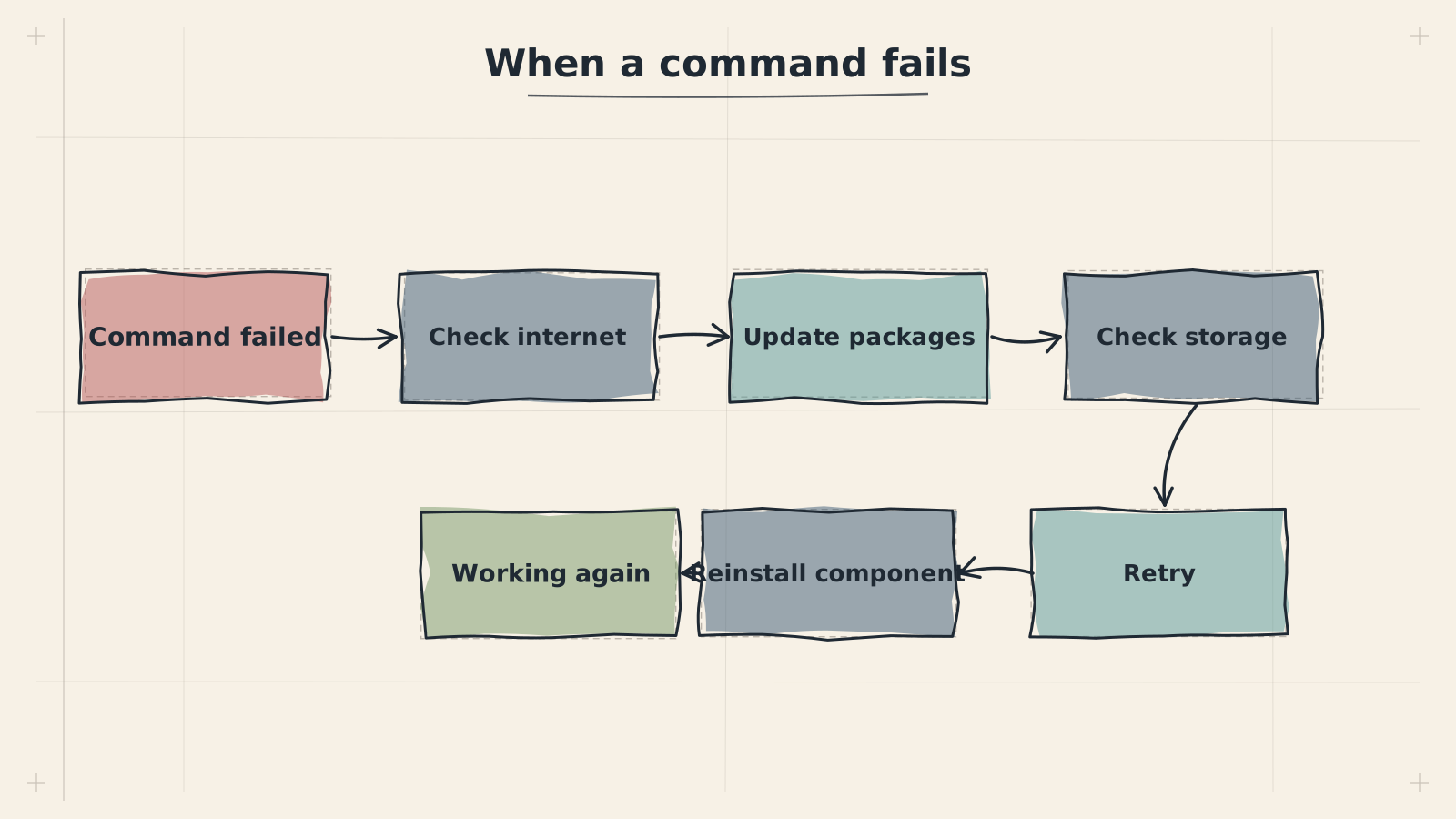
When an install command fails, check in this order
This page covers common problems specific to Termux itself --- package management failures, permission errors, Android killing Termux in the background, and storage access. For installation issues, see Install Termux. For commands reference, see Termux Commands.
⚠️Warning
Make sure you are running Termux from F-Droid, not the Google Play Store. The Play Store version is abandoned and many of the issues on this page cannot be resolved with it. See Install Termux for details.
Problems with pkg update, pkg upgrade, or installing new packages.
🔧Troubleshooting
pkg update fails with "Unable to locate package" or connection errors
The default mirror may be down or unreachable from your region. Switch to a different mirror by running termux-change-repo. Select the default repositories when prompted, then pick a mirror geographically close to you. After switching, run pkg update again.
pkg update hangs or times out
This is usually a DNS resolution problem. First, verify your internet connection works by running ping -c 3 google.com. If ping fails, check your Wi-Fi or mobile data. If ping succeeds but pkg still hangs, your ISP may be blocking Termux's default DNS. Set a manual DNS server by adding nameserver 8.8.8.8 to $PREFIX/etc/resolv.conf, then retry.
"The repository is not signed" or GPG errors during update
Your Termux installation may have stale signing keys. This typically happens after a long period without updates. Reinstall the package manager keyring to refresh the keys, then update again.
pkg upgrade fails midway and leaves packages in a broken state
Run dpkg --configure -a to finish configuring any partially installed packages. Then run pkg update && pkg upgrade -y to complete the upgrade. If individual packages remain broken, remove and reinstall them with pkg uninstall <package> followed by pkg install <package>.
$termux-change-repo
To manually set DNS if your provider is interfering:
Issues where Termux cannot locate its package repositories at all.
🔧Troubleshooting
"The repository does not have a Release file" error
This means the mirror you are pointed at does not host the expected repository structure. Run termux-change-repo and switch to a known-good mirror such as packages.termux.dev or a regional mirror from the list. Avoid mirrors marked as experimental.
"404 Not Found" when fetching package lists after an Android or Termux update
Termux occasionally changes its repository layout between major releases. If you updated Termux itself (or Android forced an update), your sources list may reference an old path. Run termux-change-repo to regenerate the sources list with the correct paths for your Termux version.
Custom or third-party repository stopped working
Third-party repos (such as x11-repo or tur-repo) are maintained independently and may go offline. Check whether the repository is still active. If it is, remove and re-add it. For x11-repo specifically, reinstall it with pkg install x11-repo. For root-repo, use pkg install root-repo.
To reinstall the X11 repository (needed for desktop components):
$pkg install x11-repo -y
ℹ️Note
The x11-repo package is required for installing graphical components used by ADL's desktop environment. If you removed it or it became corrupted, reinstalling it restores the repository source automatically.
File system and execution permission problems within Termux.
🔧Troubleshooting
"Permission denied" when running a downloaded script or binary
Android restricts execution on external storage. Files in ~/storage or /sdcard cannot be executed directly. Copy the file to Termux's home directory or $PREFIX/bin first, then mark it executable with chmod +x <filename>.
"Permission denied" when writing to /sdcard or ~/storage paths
Termux needs explicit storage permission from Android. Run termux-setup-storage and tap Allow on the Android permission dialog. If you already granted it but the error persists, revoke and re-grant the permission in Android Settings > Apps > Termux > Permissions > Storage.
"Operation not permitted" when using chown or chmod on shared storage
Android's shared storage (/sdcard, ~/storage/shared) uses a FUSE filesystem that does not support traditional Unix ownership or permission changes. This is an Android limitation, not a Termux bug. Work with files in Termux's own home directory (~/) where you have full control, and copy results to shared storage when finished.
Cannot install packages --- "Permission denied" from dpkg
This can happen if Termux's data directory has been corrupted, usually by a file manager app or a cleaning utility modifying Termux internals. Try running pkg clean to clear the cache, then retry. If the problem persists, you may need to reinstall Termux from F-Droid (this will reset your Termux environment).
$termux-setup-storage
⭐Best Practice
Keep scripts and executables inside Termux's home directory (~/) rather than on shared storage. The home directory supports standard Unix permissions, while Android's shared storage does not.
Android aggressively kills background processes to save battery, which can terminate Termux sessions, break long-running installs, and disconnect proot.
🔧Troubleshooting
Termux gets killed when switching to another app or locking the screen
Disable battery optimization for Termux. Go to Android Settings > Apps > Termux > Battery and select "Unrestricted" or "No restrictions" (wording varies by manufacturer). On Samsung devices, also disable "Put app to sleep" and "Deep sleeping apps" for Termux in Settings > Battery > Background usage limits.
Long-running commands (proot install, large downloads) are interrupted
Acquire a Termux wake lock before starting long operations. Run termux-wake-lock in a Termux session --- this prevents Android from suspending the process. You can also pull down the notification shade and tap the Termux notification to toggle the wake lock. Release it afterward with termux-wake-unlock to conserve battery.
Termux session resets to a fresh state after being killed
When Android kills Termux, all running processes including proot sessions are terminated and the shell restarts. This is expected behavior. To guard against it, use the wake lock as described above, and keep Termux's notification visible (do not swipe it away). If you are running ADL's desktop environment, you will need to relaunch it after Termux restarts.
Phantom process killer terminates Termux on Android 12+
Android 12 and later enforce a limit on background ("phantom") processes. Termux with proot running multiple processes can exceed this limit. Acquire a wake lock with termux-wake-lock to reduce the chance of being killed. On rooted devices or with ADB access, the phantom process limit can be raised --- but for most users, the wake lock combined with disabling battery optimization is sufficient.
$termux-wake-lock
To release the wake lock when you are done with long-running work:
$termux-wake-unlock
✅💡 Tip
On Samsung devices, battery optimization settings are more aggressive than stock Android. Check three places: Settings > Apps > Termux > Battery, Settings > Battery > Background usage limits, and Settings > Device care > Battery > App power management. Disable restrictions for Termux in all of them. See the Samsung DeX guide for additional Samsung-specific configuration.
Problems accessing Android storage from within Termux or the proot environment.
🔧Troubleshooting
~/storage directory is empty or missing after running termux-setup-storage
Close Termux completely (swipe it away from recent apps), then reopen it and run termux-setup-storage again. Make sure you tap Allow on the Android permission dialog. If the dialog does not appear, go to Android Settings > Apps > Termux > Permissions > Storage and enable it manually, then run termux-setup-storage once more.
Files saved in proot Ubuntu are not visible in Android's file manager
The proot environment's filesystem is contained within Termux's private data directory. Files stored inside proot are not directly visible to Android apps. To make files accessible to Android, copy them to ~/storage/shared from within the proot session (this path maps to your device's internal storage).
Cannot access SD card from Termux
After running termux-setup-storage, the SD card should appear at ~/storage/external-1. If it does not, your device may not support SD card access from Termux, or Android's scoped storage restrictions (Android 11+) may be blocking it. Try granting "All files access" to Termux in Android Settings > Apps > Termux > Permissions if your Android version offers this option.
"Read-only file system" error when writing to ~/storage
This usually means the storage permission was revoked or expired. Re-run termux-setup-storage and grant permission again. If the problem occurs only on specific paths under ~/storage, the underlying Android media provider may be restricting writes to that directory. Use ~/storage/shared/Download as a reliable writable location.
$ls -la ~/storage/
Use this to verify which storage directories are available and accessible.
Understanding Termux storage paths
Termux maps several Android storage locations into the ~/storage directory:
The "Process completed (signal 9)" message means Android forcibly terminated Termux with SIGKILL. This is distinct from normal background killing and often indicates a more aggressive system intervention.
This indicates Android killed Termux before it could fully start. The most common cause is aggressive battery management on manufacturer-customized Android versions. Disable battery optimization for Termux in Android Settings > Apps > Termux > Battery. On Android 12+, also check that Termux is not listed under Settings > Battery > Background usage limits > Deep sleeping apps.
'Process completed (signal 9)' appears during a long-running operation like proot-distro install
The phantom process killer on Android 12+ is terminating Termux because it has too many child processes. Acquire a wake lock before starting the operation with termux-wake-lock. Keep Termux in the foreground during the operation if possible. If the problem persists, reduce the number of concurrent processes --- avoid running proot sessions in multiple Termux tabs simultaneously.
'Process completed (signal 9)' occurs repeatedly despite all battery optimizations being disabled
Some manufacturer ROMs have additional process management layers beyond stock Android. See the manufacturer-specific steps below. As a last resort, you may need to use ADB to disable the phantom process killer entirely: adb shell 'settings put global settings_enable_monitor_phantom_procs false'. This requires a computer with ADB installed.
Settings > Battery > More settings > disable "Optimize battery use" for Termux
ℹ️Note
Menu paths may vary slightly between OS versions. If you cannot find a setting at the exact path listed, search for "battery" or "optimization" in your device settings and look for per-app options. The key goal across all manufacturers is the same: tell the system to never restrict or kill Termux.