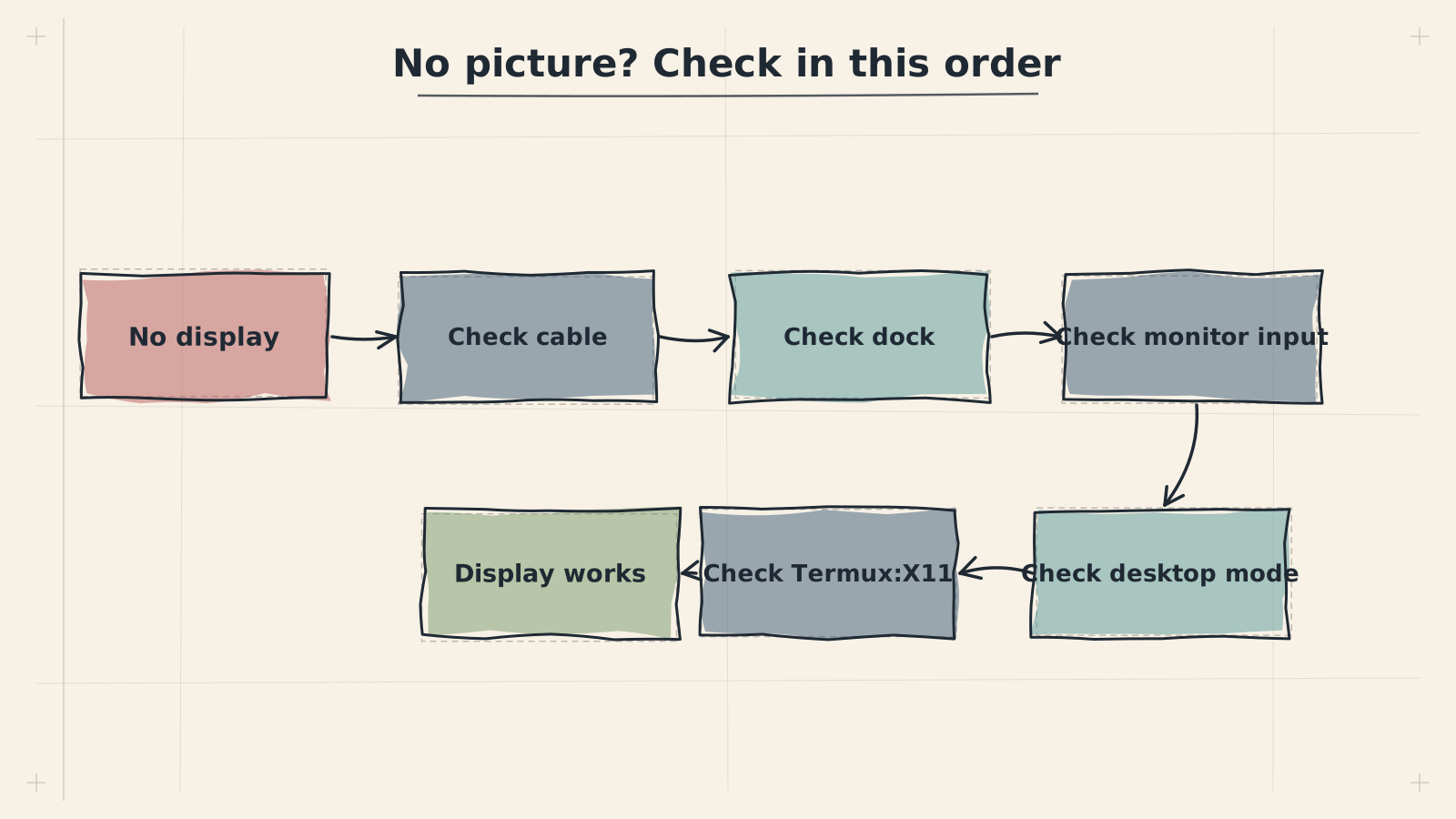
Display problems are among the most common issues when running a Linux desktop on Android. Most stem from misconfigured display servers, incorrect resolution settings, or permission issues between Termux and the proot environment.
A black screen typically means the display server is running but the desktop environment failed to start, or the client is not connecting to the correct display.
🔧Troubleshooting
Termux:X11 shows a black screen after launching the desktop
The DISPLAY variable is likely not set or points to the wrong socket. Verify it is exported before starting XFCE. Run the following inside the proot environment to confirm:
Black screen with cursor visible but no desktop loading
This usually means XFCE is crashing on startup. A corrupt session cache is the most common cause. Clear it and restart.
Black screen after device sleep or screen off
Android may kill background processes aggressively. Acquire a Termux wake lock before launching the desktop, and ensure Termux is excluded from battery optimization in your device settings.
$export DISPLAY=:0
To clear a corrupt XFCE session cache:
$rm -rf ~/.cache/sessions/*
Acquire a wake lock to prevent Android from stopping Termux:
$termux-wake-lock
See First Launch for the correct startup sequence.
Wrong Resolution / Resolution Not Matching Device
Resolution mismatches cause the desktop to appear cropped, stretched, or surrounded by black borders.
🔧Troubleshooting
Desktop resolution does not match the device screen
Termux:X11 uses a default resolution that may not correspond to your display. Set the resolution explicitly when starting the X server or within the Termux:X11 app preferences.
Resolution changes are not taking effect
If you modified the resolution but see no change, the X server may need a full restart. Kill any existing Termux:X11 processes before relaunching.
Desktop appears zoomed in or only a portion is visible
The resolution is set higher than what Termux:X11 is configured to handle. Lower the resolution or enable output scaling in the Termux:X11 preferences.
To query your device's native resolution from Termux:
$termux-info | grep -i resolution
Set a specific resolution when starting the display:
$export RESOLUTION=1920x1080
To resize an active X session from within the proot environment:
$xrandr --output default --mode 1920x1080
✅💡 Tip
For tablets and foldables, use the unfolded resolution. Check your device specifications if termux-info does not report it accurately.
Termux:X11 APK Will Not Install on Samsung Devices
Samsung Auto Blocker or the per-app Install unknown apps permission is blocking the APK. The installer is dismissed silently, so no error is shown.
ℹ️Two separate components
Installing termux-x11-nightly inside Termux does not install the Android Termux:X11 application. The Termux-side client and the Termux:X11 Android app are separate components, and both are required.
Temporarily disable Samsung Auto Blocker (Settings > Security and privacy > Auto Blocker). If Maximum restrictions is enabled, disable it temporarily as well.
Allow My Files, Samsung Internet, Chrome, or whichever app is opening the APK to install unknown apps (Settings > Security and privacy > More security settings > Install unknown apps).
Install the APK again from My Files or the browser.
Confirm the Android package exists:
$pm list packages | grep termux.x11
🎯Expected Result
package:com.termux.x11
Re-enable Auto Blocker and remove the temporary unknown-app permission afterward.
Connection failures between Termux and the X11 companion app prevent the desktop from displaying entirely.
🔧Troubleshooting
Error: 'Connection refused' or 'Cannot open display'
The Termux:X11 app is not running or was started after the desktop session. Always open the Termux:X11 app first, then start the desktop from Termux.
Termux:X11 app is open but the desktop does not appear
The shared memory connection between Termux and Termux:X11 may be broken. Restart both apps completely --- force-stop Termux:X11 from Android settings, then reopen it and relaunch the desktop.
Permission denied errors when connecting to the display
Ensure Termux:X11 has the 'Display over other apps' permission enabled in Android settings. On Android 13+, you may also need to grant the notification permission for the app to maintain its background service.
If you installed Termux from the Play Store and Termux:X11 from F-Droid (or vice versa), they cannot communicate. Both must come from the same source --- either both from F-Droid or both from GitHub releases.
Verify the X11 socket exists:
$ls -la /tmp/.X11-unix/
Refer to Install Desktop for the correct installation pairing.
When the display server connects but XFCE itself fails, you will typically see error messages in the terminal or a bare X11 screen with no panels or desktop.
🔧Troubleshooting
Error: 'Failed to connect to session manager'
The dbus session bus is not running. Start dbus manually before launching XFCE.
XFCE panels and desktop do not load, only a blank root window
The XFCE configuration may be corrupted. Reset it to defaults by removing the xfce4 configuration directory and restarting.
Error: 'Another window manager is already running'
A previous xfwm4 instance did not shut down cleanly. Kill it before starting a new session.
Repeated crash loop when starting XFCE
Check for missing dependencies. A partial installation can cause components to fail silently. Reinstall the desktop metapackage.
Horizontal lines or visual artifacts during scrolling or video playback indicate screen tearing, caused by the compositor or lack thereof.
🔧Troubleshooting
Visible horizontal tearing when scrolling or moving windows
Enable the XFCE compositor with vsync. Open Settings > Window Manager Tweaks > Compositor and enable 'Synchronize drawing to the vertical blank'. Alternatively, configure it from the command line.
Compositor is enabled but tearing persists
The default compositor backend may not work well under proot. Try switching the compositor's rendering mode or disabling it entirely and relying on the Termux:X11 app's own frame synchronization.
Performance drops significantly after enabling the compositor
Software compositing in a proot environment is CPU-intensive. Disable the compositor and accept minor tearing, or reduce the desktop resolution to compensate.
Hardware-accelerated compositing is not available under proot. All rendering is done in software, which is significantly slower than native Linux desktop performance.
Text and interface elements that appear too small on high-density screens or too large on low-resolution devices are caused by incorrect DPI settings.
🔧Troubleshooting
Text and icons are extremely small on a high-resolution device
The default DPI of 96 is too low for high-density mobile screens. Increase the DPI to 140--192 depending on your device's pixel density.
UI elements are oversized and overlap each other
The DPI is set too high for your resolution. Lower it, or increase the desktop resolution to match.
Some applications respect DPI settings but others do not
GTK and Qt applications use different scaling mechanisms. Set the scaling factor for each toolkit independently.
Set DPI for the X server:
$xfconf-query -c xsettings -p /Xft/DPI -s 140
Set GTK scaling:
$export GDK_SCALE=2
Set Qt scaling:
$export QT_SCALE_FACTOR=1.5
⭐Best Practice
Start with a DPI value of 140 for most modern phones and adjust in increments of 20 until text is comfortably readable. For tablets, 120 is usually a good starting point.
Add these exports to your shell profile so they persist across sessions:
If you are using VNC instead of Termux:X11, connection failures are typically caused by the VNC server not running or listening on the wrong port.
🔧Troubleshooting
VNC client shows 'Connection refused' on localhost:5901
The VNC server is not running or crashed on startup. Start it manually and check for errors in the output.
VNC connects but shows a gray screen with no desktop
The VNC server's xstartup file is missing or does not launch XFCE. Create or fix the startup script.
VNC session is extremely slow or laggy
VNC encodes each frame as an image, which is far slower than the shared-memory approach used by Termux:X11. Reduce the resolution, lower the color depth, or switch to Termux:X11 for significantly better performance.
Termux:X11 is strongly recommended over VNC for daily use. It provides lower latency and better performance since it uses shared memory rather than network-based frame transfer. See Install Desktop for setup instructions.