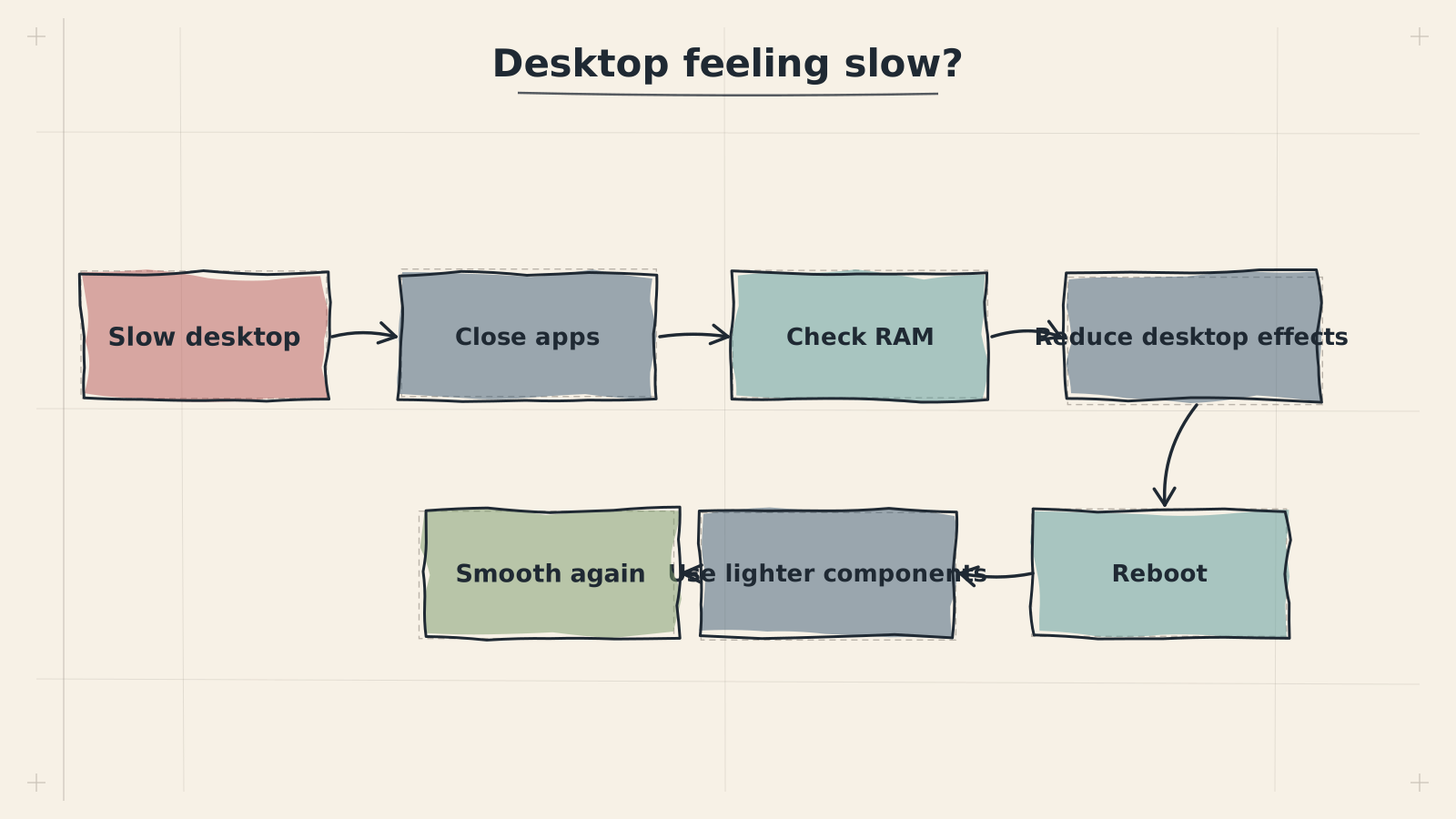
Running a full Linux desktop through proot on Android introduces inherent overhead. This guide covers common performance problems and practical solutions to get the best experience out of ADL.
ℹ️Note
Proot translates system calls between the guest Linux environment and the Android kernel. This translation layer adds measurable overhead --- typically 10--30% compared to native execution --- and is most noticeable during I/O-heavy operations like package installs or file searches.
The first boot after installation is significantly slower because proot must initialize its filesystem mappings, XFCE generates default configuration files, and D-Bus activates services for the first time. Subsequent boots skip this initialization. If you have reinstalled or cleared Termux data, expect another slow first boot. There is no fix for this --- it is a one-time cost.
Subsequent boots are still slow (over 60 seconds)
Disable unnecessary startup applications in XFCE. Open Settings > Session and Startup > Application Autostart and uncheck anything you do not need. Common culprits include screen readers, print managers, and Bluetooth adapters that serve no purpose in ADL. You can also check what is running during startup with the following command.
Long delay before the desktop appears after proot launches
This is often caused by DNS resolution timeouts inside proot. Verify that /etc/resolv.conf in the guest environment contains a working nameserver. If it is empty or points to an unreachable address, XFCE session startup stalls while services attempt network lookups.
Check which processes are consuming time during startup:
$systemd-analyze blame 2>/dev/null || ps aux --sort=-start_time | head -20
If DNS is the bottleneck, set a reliable nameserver:
One or more CPU cores are pinned at 100% during normal use
Open a terminal and identify the offending process. The most common culprits in ADL are xfwm4 (the window manager) performing software compositing, xfdesktop repainting wallpaper, or a runaway proot translation loop. If xfwm4 is the problem, disable the compositor (covered in the display lag section below). If proot itself shows high CPU, a guest process is likely making rapid system calls --- find and address that process instead.
CPU spikes when switching windows or workspaces
XFCE's window manager redraws all visible surfaces during workspace transitions. Reduce the number of active workspaces in Settings > Workspaces and disable desktop effects like window animations. In Settings > Window Manager Tweaks > Compositor, uncheck 'Show shadows under dock windows' and 'Show shadows under popup windows' to reduce compositing work.
Background processes consume CPU even when ADL is idle
Several XFCE panel plugins poll at fixed intervals. The CPU frequency monitor, network monitor, and system load plugins each wake the CPU periodically. Remove any panel plugins you are not actively using by right-clicking the panel, selecting Panel > Panel Preferences, and removing unnecessary items from the Items tab.
Identify the top CPU consumers:
$top -bn1 -o %CPU | head -20
For a more detailed and interactive view, install and use htop:
$apt install -y htop && htop
✅💡 Tip
In htop, press F6 to sort by CPU percentage, or press F5 to view processes as a tree --- this helps identify which parent process spawned a runaway child.
Applications are killed without warning, or Termux itself is terminated by Android
Android aggressively manages memory and will kill background processes --- including Termux --- when the system is under pressure. Acquire a Termux wake lock by pulling down the Termux notification and tapping 'Acquire wakelock'. This raises Termux's process priority and makes it less likely to be killed, though it is not a guarantee under extreme memory pressure.
Running out of memory with only a few applications open
Proot, the guest Ubuntu system, and XFCE together consume 300--500 MB before you open any applications. On devices with 3--4 GB of total RAM, this leaves very little headroom. Close browser tabs aggressively --- each tab in Firefox can consume 100--200 MB. Prefer lightweight alternatives: use Mousepad instead of VS Code, Midori instead of Firefox, and avoid running multiple heavy applications simultaneously.
The 'Killed' message appears when compiling software or running memory-intensive tasks
Android's low-memory killer (LMK) is terminating the process. Create a swap file to extend available memory. This uses storage as slow memory, which is better than crashing.
Check current memory usage:
$free -h
Create a 1 GB swap file to provide overflow memory:
Swap on flash storage increases write wear and is significantly slower than RAM. Use it as a safety net to prevent OOM kills, not as a substitute for adequate memory. On devices with eMMC storage (rather than UFS), heavy swap usage can noticeably degrade overall device performance.
Verify swap is active:
$swapon --show
To make the swap file persist across reboots, add it to fstab:
Applications crash immediately on launch with 'segmentation fault' or no error message
This is frequently caused by proot failing to translate a system call the application depends on. Check if the application works outside of proot first. If it does, the crash is a proot compatibility issue. Update proot to the latest version and check the proot-distro GitHub issues for known incompatibilities with that application.
Firefox or Chromium crashes on startup
Browsers attempt to use sandboxing features (namespaces, seccomp) that are unavailable or broken under proot. For Firefox, try disabling the sandbox by setting the environment variable MOZ_DISABLE_CONTENT_SANDBOX=1. For Chromium-based browsers, launch with the --no-sandbox flag. Note that this reduces security isolation within the browser.
Applications crash after running for a while, not immediately
This is usually an OOM kill rather than a true crash. Check dmesg (if available) or monitor memory usage while the application runs. See the memory section above for mitigation. Another cause is Android doze mode suspending Termux --- ensure the wakelock is acquired and battery optimization is disabled for Termux in Android settings.
Java or Electron applications fail to start
These applications often require more memory than lightweight native applications. Java's default heap size may exceed available memory. Set a conservative heap size with the_JAVA_OPTIONS environment variable. Electron apps (VS Code, Atom) are particularly resource-heavy and may not be practical on devices with under 6 GB of RAM.
The desktop feels sluggish --- windows drag slowly, menus take time to appear
The XFCE compositor (xfwm4's built-in compositing) performs software rendering through proot, which is extremely slow. Disable it: open Settings > Window Manager Tweaks > Compositor and uncheck 'Enable display compositing'. This eliminates transparency effects and shadows but dramatically improves responsiveness.
VNC viewer shows low frame rate or visible tearing
Adjust the VNC client's encoding settings. Use Tight encoding with a moderate quality level (5--7) rather than maximum quality. Reduce the color depth to 16-bit if the viewer supports it. If you are connecting locally (same device), use a Unix socket instead of a TCP connection to eliminate network overhead.
Mouse cursor movement is delayed or jumpy
This is typically caused by the VNC polling interval. If using x11vnc, increase the polling frequency. If using TigerVNC, the cursor should be handled client-side by default --- ensure 'local cursor' is enabled in your VNC viewer settings. High CPU load from other processes will also affect cursor responsiveness.
Screen updates are slow when scrolling in browsers or text editors
Large display resolutions require more data to be transferred and rendered. Reduce the VNC session resolution to match your device's actual screen size rather than using a larger virtual resolution. In XFCE, also disable desktop icons (Settings > Desktop > Icons > Icon type: None) to prevent xfdesktop from redrawing behind application windows.
Disable the XFCE compositor from the command line:
For the best overall performance, disable compositing, use a 720p or lower resolution, close applications you are not actively using, and ensure Termux has a wakelock acquired. These four steps address the most common sources of lag in ADL.
Proot adds overhead to every filesystem operation because it intercepts and translates system calls. Combined with Android's FUSE layer for shared storage, I/O-heavy tasks can become noticeably slow.
🔧Troubleshooting
Package installations and file operations are extremely slow
Proot must intercept every system call involved in file I/O, adding measurable latency to each operation. Package installs involve thousands of small file writes, making this overhead cumulative. There is no way to eliminate proot's translation cost entirely, but you can reduce unnecessary I/O by cleaning the apt cache before upgrades and avoiding operations on shared storage (~/storage) from within proot.
Applications that read or write many files (IDEs, file managers, git) are sluggish
Keep project files inside the proot filesystem (/home/user) rather than on Android shared storage (~/storage/shared). Shared storage goes through both proot's system call translation and Android's FUSE layer, doubling the overhead. Working within proot's own filesystem eliminates the FUSE layer entirely.
Device becomes generally slow during large file operations inside proot
Large file operations (extracting archives, compiling software, running database imports) can saturate the storage I/O bandwidth, causing slowness across the entire device. Android prioritizes foreground app I/O, so Termux --- running as a background service --- gets lower priority. Use ionice inside proot to lower the I/O priority of non-critical operations, and avoid running multiple large I/O tasks simultaneously.
Storage operations are slow on devices with eMMC storage
Devices with eMMC storage (common in budget and mid-range phones) have significantly lower random read/write speeds compared to UFS storage found in flagship devices. If your device uses eMMC, expect slower performance during I/O-heavy tasks. Minimize the number of installed packages, avoid swap-heavy workloads, and consider using an external SD card (UHS-I or better) for large file storage.
Check your storage I/O speed with a simple benchmark:
Clean the apt cache to reduce unnecessary storage usage:
$sudo apt clean && sudo apt autoclean
Check available disk space:
$df -h / /sdcard 2>/dev/null
✅💡 Tip
If you need to transfer large files between the proot filesystem and Android shared storage, use cp rather than mv. Moving files across filesystem boundaries triggers a copy-then-delete internally, and if interrupted, can leave files in an inconsistent state. An explicit cp followed by verification and then rm of the source is safer.
For detailed tuning and optimization beyond troubleshooting, see the Performance Optimization guide.
For display-specific issues such as screen corruption, blank screens, or resolution detection problems, see the Display Troubleshooting guide.