First Launch
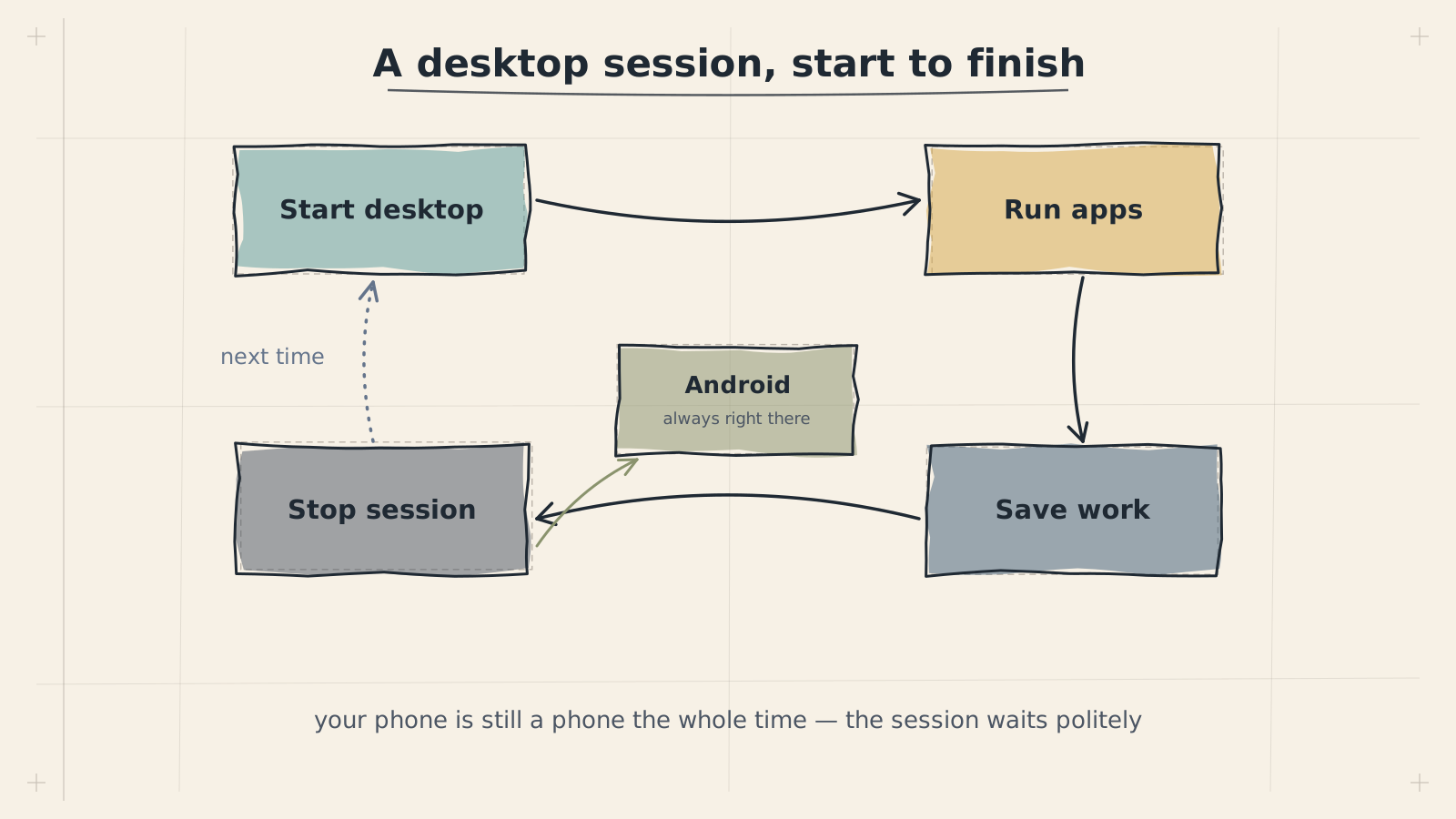
Everything is installed. Time to launch your Linux desktop.
Step 1: Start the Desktop
If this is your very first launch, confirm both Termux:X11 components exist: command -v termux-x11 (Termux-side client) and pm list packages | grep termux.x11 (Android app). If the second returns nothing on a Samsung device, see Termux:X11 APK will not install on Samsung devices.
~/start-desktop.shYou'll see output from the X11 server starting and XFCE initializing. A few seconds of log messages are normal.
Step 2: Open Termux:X11
Switch to the Termux:X11 app (you can use Android's app switcher or notification shade -- Termux:X11 often shows a notification when the server is running).
You should see the XFCE desktop environment with a panel at the top, a dock or panel at the bottom, and a desktop with a default wallpaper. This is a fully functional Linux desktop running on your Android device.
Step 3: Explore Your New Desktop
Things to try right away:
- Open the File Manager: Click the file cabinet icon in the panel or find "File Manager" in the Applications menu. Browse your Linux filesystem.
- Open a Terminal: Right-click the desktop and select "Open Terminal Here", or find "Terminal Emulator" in the Applications menu. Try running
uname -ato confirm you're in Ubuntu. - Change the Wallpaper: Right-click the desktop, select "Desktop Settings", and choose a new wallpaper or solid color.
- Open the Application Menu: Click "Applications" in the top-left panel to see all installed programs.
XFCE supports standard keyboard shortcuts. If you have a keyboard connected: Alt+F2 opens the application runner, Ctrl+Alt+T opens a terminal, and Alt+Tab switches between windows. These are especially useful with Samsung DeX or USB keyboards.
On a touchscreen, tap to click, long-press for right-click, and pinch to zoom in Termux:X11. Two-finger swipe scrolls within windows.
You now have a complete Linux desktop running on your Android device. You can install software with apt, edit documents, write code, browse files, and much more -- all without rooting your phone or voiding your warranty.
Next Steps
Now that your desktop is running, here's where to go next:
To cleanly stop your desktop session, log out from XFCE (Applications > Log Out) or switch back to Termux and press Ctrl+C. Avoid just closing the Termux app, as this can leave orphaned processes.