Installing Applications
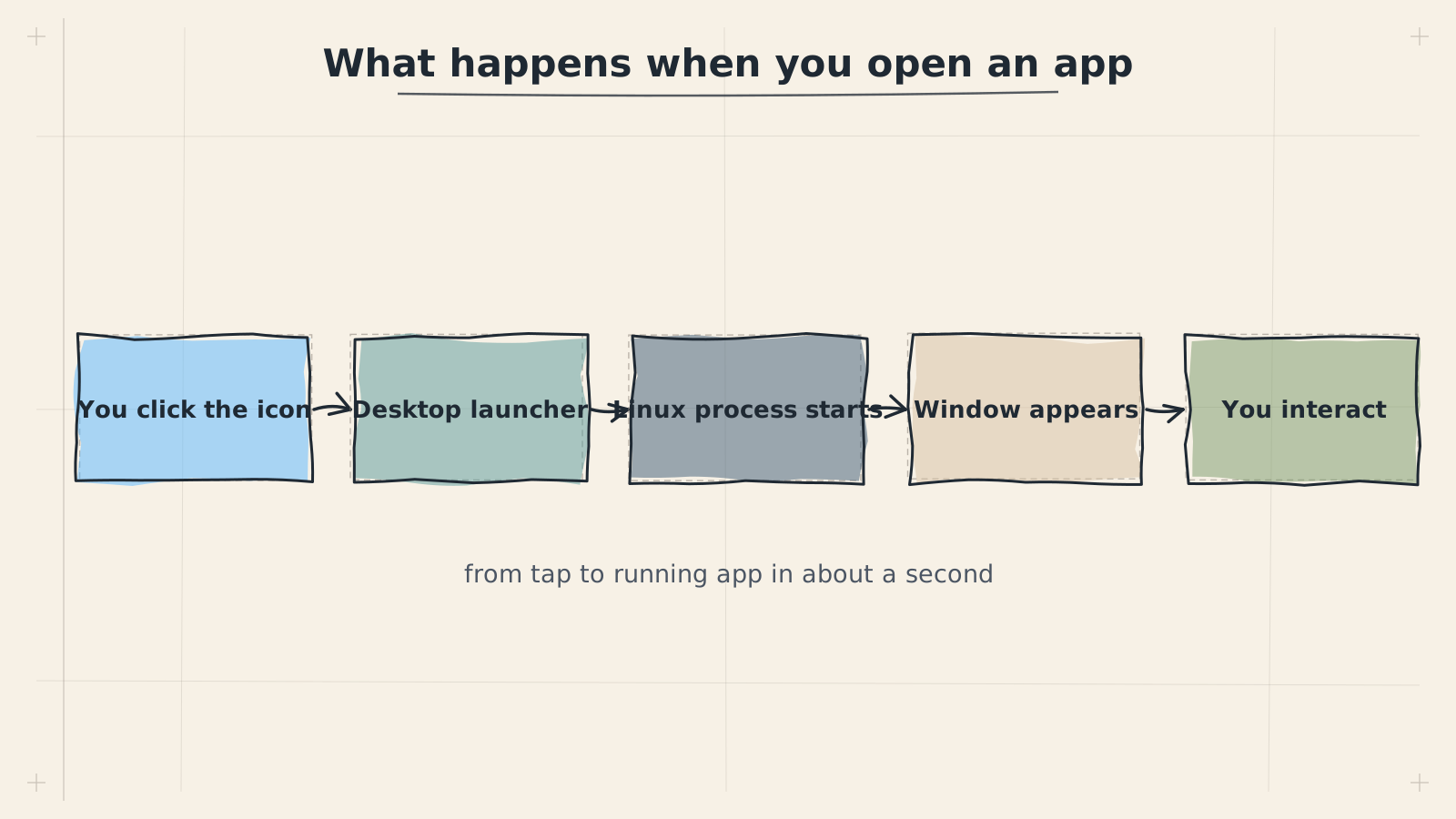
ADL gives you access to thousands of Linux applications through the same package manager that powers Ubuntu servers and desktops worldwide. If you have never installed software from a command line before, this guide will walk you through everything you need to know.
How Software Installation Works in ADL
Unlike Android, where you tap "Install" in the Play Store, ADL uses a command-line tool called APT (Advanced Package Tool) to install, update, and remove software. APT connects to online repositories that contain pre-built software packages, downloads them, and sets everything up for you automatically.
If you want to understand how package managers work in more detail, see What Is a Package Manager?.
Always update your package lists before installing new software. This ensures APT knows about the latest available versions.
apt updateFinding Software
Before you install something, you need to know its package name. The package name is not always the same as the application name you are used to. For example, the Firefox browser is packaged as firefox, but the VLC media player is packaged as vlc.
Searching for Packages
Use apt search followed by a keyword to find packages:
apt search web browserThis returns a list of packages with "web" and "browser" in their name or description. The output can be long, so you can narrow it down:
apt search --names-only firefoxGetting Package Details
Once you find a package, check its details before installing:
apt show vlcThis tells you the package version, size, dependencies, and a description of what it does.
Installing Software
To install a package, use apt install followed by the package name:
apt install vlc -yThe -y flag automatically confirms the installation so you do not have to type "yes" manually.
You can install multiple packages at once:
apt install gimp inkscape audacity -yIf you are not sure whether a package is already installed, go ahead and run the install command. APT will simply tell you it is already at the latest version.
Removing Software
To remove an application you no longer need:
apt remove vlc -yTo remove the application and its configuration files:
apt purge vlc -yAfter removing packages, clean up leftover dependencies that are no longer needed:
apt autoremove -yUpdating Software
Keep all of your installed software up to date with two commands:
apt update && apt upgrade -yThe first command refreshes the list of available packages. The second downloads and installs any newer versions.
Run updates regularly, at least once a week, to get security patches and bug fixes.
ARM Architecture: What You Need to Know
ADL runs on Android devices, which use ARM processors (arm64/aarch64). This has an important consequence for software compatibility.
Only ARM-compatible packages (arm64/aarch64) work in ADL. Software built for x86 or x86_64 (standard PC processors) will not run. Most packages in the Ubuntu repositories are available for ARM, but some third-party software may only provide x86 builds.
When downloading software from outside APT (such as .deb files from a project's website), always select the arm64 or aarch64 version. If only an x86/amd64 version is available, that software will not work in ADL.
How to Check a Package's Architecture
You can verify that a package supports ARM before installing:
apt show firefox | grep ArchitectureThe output should say arm64. If it says amd64, the package is not compatible.
Recommended Applications
The following table lists well-tested applications that run reliably on ADL. All of these are available through APT and support ARM.
Web Browsers
| Application | Package Name | Description |
|---|---|---|
| Firefox | firefox | Full-featured browser with extension support |
| Chromium | chromium-browser | Open-source version of Chrome |
| Midori | midori | Lightweight browser, good for low-RAM devices |
Office and Productivity
| Application | Package Name | Description |
|---|---|---|
| LibreOffice | libreoffice | Full office suite (documents, spreadsheets, presentations) |
| AbiWord | abiword | Lightweight word processor |
| Gnumeric | gnumeric | Lightweight spreadsheet editor |
| Evince | evince | PDF and document viewer |
| Mousepad | mousepad | Simple text editor (included with XFCE) |
Development Tools
| Application | Package Name | Description |
|---|---|---|
| VS Code (OSS) | code-oss | Code editor with extension support |
| Vim | vim | Terminal-based text editor |
| Git | git | Version control system |
| Python 3 | python3 | Python programming language |
| Node.js | nodejs | JavaScript runtime |
| GCC | gcc | C/C++ compiler |
Media
| Application | Package Name | Description |
|---|---|---|
| VLC | vlc | Plays almost any audio or video format |
| GIMP | gimp | Image editor (similar to Photoshop) |
| Inkscape | inkscape | Vector graphics editor |
| Audacity | audacity | Audio recording and editing |
| mpv | mpv | Lightweight video player |
Utilities
| Application | Package Name | Description |
|---|---|---|
| Thunar | thunar | File manager (included with XFCE) |
| XFCE Terminal | xfce4-terminal | Terminal emulator (included with XFCE) |
| Htop | htop | System resource monitor |
| Neofetch | neofetch | System information display |
| File Roller | file-roller | Archive manager (zip, tar, etc.) |
Start with lightweight applications if your device has limited RAM (4 GB or less). Midori instead of Firefox, AbiWord instead of LibreOffice, and mpv instead of VLC will all use significantly less memory.
Installing a Starter Pack
To install a solid set of everyday applications in one command:
apt install firefox libreoffice vlc gimp htop file-roller -yInstalling Software From Outside APT
Some applications are not available in the Ubuntu repositories. In those cases you may find .deb files on the project's website. To install a downloaded .deb file:
apt install ./package-name.deb -yOnly install .deb files from sources you trust. Unlike APT repository packages, standalone .deb files are not verified by Ubuntu's package signing system. Always download the arm64 version.
Troubleshooting
"Unable to locate package"
This usually means either the package name is wrong or your package lists are outdated. Run apt update and try again. You can also search for the correct name:
apt update && apt search your-keyword"Has no installation candidate"
The package exists in the repository metadata but has no ARM build available. Look for an alternative application that supports ARM.
Broken dependencies
If an installation fails because of dependency problems, try:
apt --fix-broken install -yIf you continue to run into problems installing a specific application, check whether it is known to work on ARM-based Ubuntu systems. Some software is only built for x86 and has no ARM version available.