Desktop Environments Overview
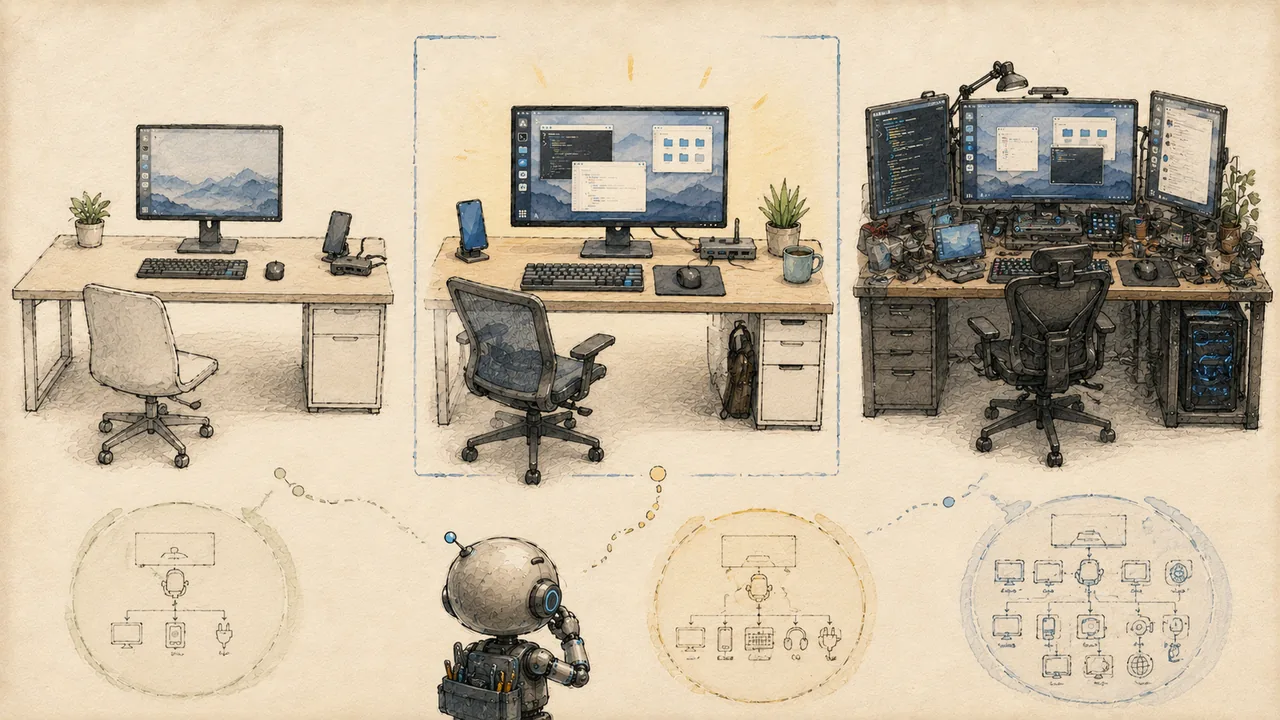
A desktop environment is the graphical layer that turns a command-line Linux system into something you can point, click, and drag. It provides the taskbar, the window controls, the file manager, the settings panels, and the visual framework that ties all your applications together.
When you follow the ADL guides, you are running a real Linux distribution inside a proot container on your Android device. Without a desktop environment, you would interact with it entirely through a terminal. A desktop environment gives you the full graphical experience --- windows, icons, menus, wallpapers --- rendered through Termux:X11 or VNC on your device screen.
Fast, stable, and fully featured. The best balance of performance and usability on a phone.
Lighter than XFCE with a Qt look. A good choice for older or lower-RAM devices.
A traditional desktop with a familiar layout. Slightly heavier than XFCE.
To understand the underlying concepts in more detail, see What is a Desktop Environment?.
What a Desktop Environment Provides
A desktop environment bundles several components together:
- Window manager --- controls how windows are drawn, moved, resized, and stacked
- Panel/taskbar --- the bar showing running applications, a clock, system tray, and launchers
- File manager --- graphical file browsing (Thunar for XFCE, PCManFM for LXDE/LXQt, Caja for MATE)
- Settings manager --- GUI for configuring appearance, display, keyboard, and other preferences
- Session manager --- handles login, logout, and restoring your workspace
- Default applications --- text editor, terminal emulator, image viewer, and other basics
A bare window manager gives you only the first item on that list. A full desktop environment gives you a complete, integrated experience out of the box.
Available Desktop Environments
ADL supports several lightweight desktop environments. All of them are designed for lower-resource systems, which makes them well-suited for running inside a proot container on Android hardware.
| Feature | XFCE | LXDE | LXQt | MATE |
|---|---|---|---|---|
| RAM usage | ~180-250 MB | ~120-180 MB | ~150-200 MB | ~200-300 MB |
| Disk space | ~800 MB | ~500 MB | ~600 MB | ~900 MB |
| Touch-friendliness | Good (configurable) | Fair | Fair | Good |
| Customizability | Excellent | Moderate | Good | Excellent |
| Community support | Very active | Declining | Growing | Active |
| GTK version | GTK3 | GTK2 | Qt5/Qt6 | GTK3 |
| Compositor | Built-in (xfwm4) | Optional (compton) | Optional (picom) | Built-in (marco) |
| Default file manager | Thunar | PCManFM | PCManFM-Qt | Caja |
| Panel plugins | Extensive | Limited | Moderate | Extensive |
| ADL stability | Tested extensively | Tested | Community-tested | Community-tested |
RAM usage figures are approximate and measured after a fresh login with no additional applications running. Actual usage varies by configuration and installed plugins.
Choosing a Desktop Environment
Installation Commands
Each desktop environment can be installed through apt inside your Ubuntu proot container. Make sure you are logged into Ubuntu before running these commands.
XFCE (Recommended)
apt install xfce4 xfce4-goodies dbus-x11 -yLXDE
apt install lxde dbus-x11 -yLXQt
apt install lxqt openbox dbus-x11 -yMATE
apt install mate-desktop-environment-core dbus-x11 -yInstalling multiple desktop environments on the same system is possible but can cause conflicts between settings managers, default applications, and themes. If you want to try different environments, consider creating separate proot containers for each.
Desktop Environment vs. Window Manager
You may encounter suggestions to use a standalone window manager like Openbox, i3, or Fluxbox instead of a full desktop environment. Here is the difference:
A window manager handles only window placement, sizing, and decorating. You get no panel, no file manager, no settings GUI, and no system tray. Everything must be configured through text files and launched manually. This saves RAM (often under 100 MB) but requires significant Linux experience.
A desktop environment wraps a window manager in a complete graphical shell. You get a taskbar, application menu, drag-and-drop file management, and graphical settings out of the box. This uses more resources but is far more usable, especially on a touch device.
Start with XFCE. It gives you a complete, functional desktop with reasonable resource usage. Once you are comfortable with the system and understand what each component does, you can experiment with lighter alternatives if your device needs the savings.
Resource Considerations
Running a desktop environment inside proot on Android adds overhead compared to native Linux. Keep these factors in mind:
- RAM is typically the bottleneck. A device with 4 GB of RAM has roughly 2-3 GB available after Android takes its share. A lighter DE leaves more room for applications.
- Storage matters for the initial install but is less of an ongoing concern. XFCE with goodies uses about 800 MB; a minimal LXDE install uses about 500 MB.
- CPU is rarely the limiting factor on modern Android devices. Even mid-range phones from the last few years have processors capable of running any of these environments smoothly.
If your device has 3 GB of RAM or less, consider LXDE or a standalone window manager. XFCE works on 4 GB devices but leaves limited headroom for memory-intensive applications like browsers or office suites.
Next Steps
- XFCE Deep Dive --- detailed configuration and customization for the recommended DE
- Customization --- themes, icons, fonts, and making your desktop look exactly how you want
- Display Servers --- configuring Termux:X11 and VNC for rendering your desktop