USB-C Hubs
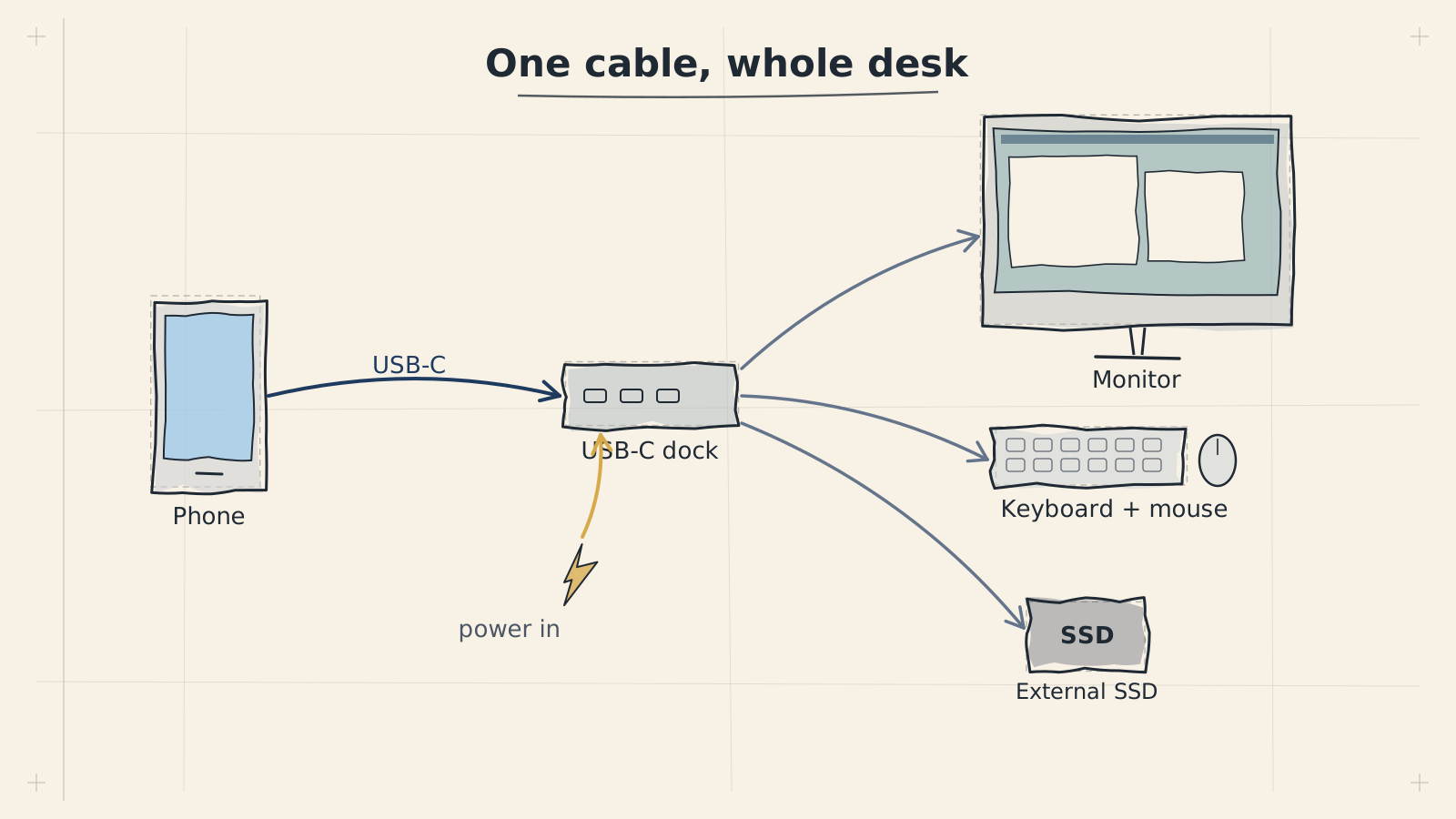
A USB-C hub is the bridge between your phone and your desktop setup. It takes the single USB-C port on your phone and expands it into multiple connections — video output for a monitor, USB-A ports for wired peripherals, Ethernet for a stable network connection, and power input to keep your phone charged while you work.
Without a hub, you are limited to Bluetooth peripherals and screen mirroring. With the right hub, your phone becomes a full desktop workstation.
DisplayPort Alt Mode
DisplayPort Alt Mode (DP Alt Mode) is the technology that allows a video signal to travel over a USB-C cable. When your phone supports DP Alt Mode, it can send a display output directly to a monitor through the USB-C port — no wireless casting, no compression, no lag.
How It Works
Your USB-C port has multiple data "lanes." Normally, these lanes carry USB data. With DP Alt Mode, some of those lanes are reassigned to carry a DisplayPort video signal instead. This happens automatically when you plug into a compatible hub or monitor.
Which Phones Support It
Not every phone supports DP Alt Mode. Support depends on the phone's processor and manufacturer decisions:
| Processor | DP Alt Mode Support |
|---|---|
| Qualcomm Snapdragon 8 series (flagship) | Almost always supported |
| Qualcomm Snapdragon 7 series (mid-range) | Sometimes supported |
| Samsung Exynos (flagship) | Usually supported (Samsung DeX) |
| Google Tensor | Supported on Pixel 8 and later |
| MediaTek Dimensity | Rarely supported |
| Budget processors | Almost never supported |
DP Alt Mode support is not guaranteed by the USB-C port itself. Your phone's chipset must explicitly support it. Check your phone's specifications or search for your model with "DisplayPort Alt Mode" before purchasing a hub.
How to Check Your Phone
- Check your phone's spec sheet — look for "DisplayPort Alt Mode," "DP Alt Mode," "video output," or "desktop mode" in the specifications
- Try it — plug your phone into a USB-C monitor or hub with a monitor attached and see if a display signal appears
- Search online — search your phone model plus "DisplayPort Alt Mode" for community reports
- Samsung phones — if your Samsung phone supports Samsung DeX, it supports DP Alt Mode
Power Delivery
USB Power Delivery (USB PD) allows your phone to charge through the hub while you use it. Without PD pass-through, your phone drains its battery while driving a monitor and peripherals — not ideal for long work sessions.
How PD Pass-Through Works
A hub with PD pass-through has a dedicated USB-C input port for a charger. Power flows from your charger, through the hub, and into your phone. The hub takes what it needs to operate and passes the rest to your phone.
Wattage Requirements
| Wattage | What to Expect |
|---|---|
| Under 30W | Phone charges slowly or not at all under load |
| 30W-45W | Phone maintains charge during light use |
| 45W-65W | Phone charges at normal speed during use |
| 65W+ | Phone charges at full speed; future-proof |
Choose a hub that supports at least 45W PD pass-through. This ensures your phone charges while driving a monitor and connected peripherals. Pair it with a charger that outputs at least 10W more than the hub's pass-through rating to account for the hub's own power draw.
What to Look For in a Hub
Essential Features
- DisplayPort Alt Mode output (HDMI port) for connecting a monitor
- USB Power Delivery pass-through at 45W or higher
- At least one USB-A port for wired peripherals
- Compact and portable form factor
Nice-to-Have Features
- Ethernet port — more reliable than Wi-Fi for long sessions
- Multiple USB-A ports — connect a keyboard, mouse, and USB drive simultaneously
- SD card reader — useful for photography workflows
- USB-C data port — for additional USB-C peripherals
- Aluminum body — better heat dissipation during extended use
Common Port Configurations
| Hub Type | Ports | Best For |
|---|---|---|
| Minimal (3-in-1) | HDMI + USB-A + USB-C PD | Portable, basic setup |
| Standard (5-in-1) | HDMI + 2x USB-A + USB-C PD + Ethernet | Most users |
| Full (7+ in 1) | HDMI + 3x USB-A + USB-C PD + Ethernet + SD/microSD | Power users |
| Dock-style | Multiple HDMI + USB ports + Ethernet + Audio + PD | Permanent desk setup |
A 5-in-1 hub hits the sweet spot for most ADL users. It covers video, charging, wired network, and peripherals without being bulky or expensive.
Cable Quality Matters
The cable connecting your phone to the hub is just as important as the hub itself. A low-quality cable can cause flickering, disconnections, or prevent video output entirely.
| Cable Type | Max Data Rate | Video Support |
|---|---|---|
| USB 2.0 cable (charge-only) | 480 Mbps | No video output |
| USB 3.1 Gen 1 | 5 Gbps | 1080p reliable, 4K limited |
| USB 3.1 Gen 2 | 10 Gbps | 4K at 60Hz |
| Thunderbolt 3/4 | 40 Gbps | 4K+ at 60Hz |
Many USB-C cables are charge-only and do not carry video or high-speed data. If your hub is not detected or your monitor shows no signal, the cable is the most likely culprit. Use a USB 3.1 Gen 2 or Thunderbolt cable that explicitly lists data and video support.
Testing Your Hub
Once you have a hub, verify it works with your phone before committing to your desk setup:
- Connect your charger to the hub's PD input port
- Connect a monitor to the hub's HDMI port
- Plug the hub into your phone using a known-good USB-C cable
- Check for video output — your phone's screen should mirror or extend to the monitor within a few seconds
- Verify charging — confirm your phone shows it is charging
- Test USB ports — plug in a USB keyboard or mouse and confirm it responds
Your monitor displays your phone's screen, your phone shows a charging indicator, and any connected USB peripherals respond to input. If you are running ADL with a desktop environment, the external monitor shows the Linux desktop.
Compatibility Considerations
- Not all USB-C phones support video output — verify DP Alt Mode support before purchasing hardware
- Some phones limit output resolution to 1080p regardless of hub or monitor capability
- Certain phone manufacturers disable DP Alt Mode on budget and mid-range models even when the chipset supports it
- Samsung DeX-compatible phones work with virtually all USB-C hubs that have HDMI output
- Cable length affects signal quality — keep cables under 2 meters for reliable 4K output
Troubleshooting
Recommended USB-C Adapters
These are adapters the project maintainer has personally tested with a Samsung Galaxy S22+ and found to work reliably with ADL.
If you only need video output (using Bluetooth keyboard and mouse):
A USB-C to HDMI adapter with PD pass-through is the simplest option. It connects your phone to a monitor while keeping the phone charged — no extra ports needed since your peripherals connect over Bluetooth.
USB-C to HDMI + PD Charging Adapter
If you need wired peripherals and charging:
A USB-C hub with HDMI, USB-A ports, and PD pass-through lets you connect a wired keyboard, mouse, and monitor while keeping the phone charged — useful when you prefer the lower latency of wired input.
USB-C Hub with HDMI + USB-A + PD Charging
Affiliate disclosure: The links above are Amazon affiliate links. As an Amazon Associate, I may earn a small commission from qualifying purchases at no additional cost to you. These recommendations are based solely on personal testing and experience — they are not sponsored or biased. Individual results may vary depending on your device, cable, and setup. You are under no obligation to purchase through these links.
Next Steps
- Set up your peripherals — keyboards, mice, monitors, and audio
- Review the recommended setup for a complete hardware list