Recommended Setup
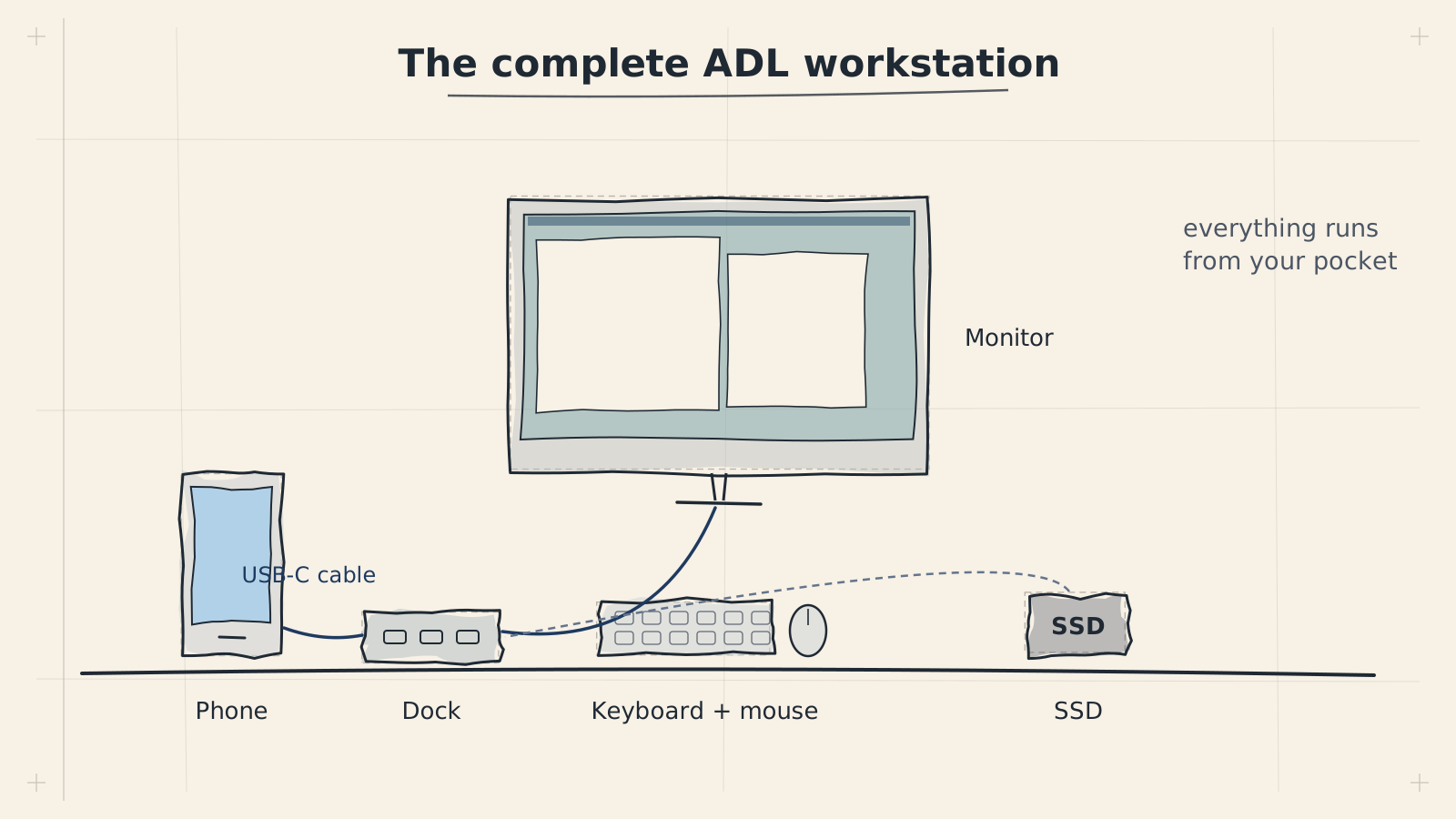
ADL shows you how to turn your Android phone into a full desktop Linux environment. To get the best experience, you need a phone with enough power, the right ports, and a few key peripherals. This guide walks you through the ideal hardware setup and helps you choose components that work well together.
- Android 10 or newer
- 6 GB+ RAM (8 GB recommended)
- 15 GB+ free storage
- DP Alt Mode for external display
- HDMI output
- USB Power Delivery pass-through (45 W+)
- At least one USB-A port
- Any HDMI monitor or TV
- 1080p works well
- Or use the phone screen only
- Bluetooth or USB keyboard
- Bluetooth or USB mouse
- On-screen keyboard works in a pinch
Primary Device: Samsung Galaxy S22+
The reference device for ADL is the Samsung Galaxy S22+ with a Snapdragon 8 Gen 1 processor and 8 GB of RAM. This is the configuration the project is developed and tested against.
Use the Snapdragon variant of the Galaxy S22+, not the Exynos version. Snapdragon provides more consistent performance and better compatibility with desktop Linux workloads.
Why this phone works well for ADL:
- Processing power -- The Snapdragon 8 Gen 1 delivers desktop-class single-core performance, handling terminal sessions, code editors, and browser windows without lag.
- 8 GB RAM -- Enough to run a Linux desktop environment alongside Android without constant memory pressure. You can comfortably keep several applications open.
- USB-C with DisplayPort Alt Mode -- The S22+ outputs video over its USB-C port, which means you can connect an external monitor directly. Not all Android phones support this.
- Thermal management -- The S22+ has a vapor chamber cooling system that sustains performance during extended desktop sessions without aggressive throttling.
- Snapdragon 8 Gen 1 or newer processor
- 8 GB RAM minimum
- USB-C port with DisplayPort Alt Mode
- Android 12 or newer
- At least 64 GB storage (128 GB recommended)
The Galaxy S22+ is the reference device, but ADL works on other phones that meet the minimum requirements. Check the compatibility information for your specific device. The key requirement is USB-C DisplayPort Alt Mode support -- many budget and mid-range phones lack this.
USB-C Hub
You need a USB-C hub to connect your phone to a monitor, charge it simultaneously, and optionally add wired peripherals. The hub must support two things: DisplayPort Alt Mode for video output and Power Delivery (PD) for pass-through charging.
Many cheap USB-C hubs only support data -- they do not pass through a video signal. Always verify that the hub explicitly lists DisplayPort Alt Mode or HDMI Alt Mode support before purchasing.
Key features to look for in a hub:
- DisplayPort Alt Mode or HDMI output (at least 1080p @ 60 Hz)
- USB-C Power Delivery pass-through (45W or higher)
- At least one USB-A port for wired peripherals as a backup
- Compact form factor for portability
For detailed hub recommendations and compatibility testing results, see the USB-C Hubs guide.
Monitor
Any monitor with an HDMI or USB-C input works. Your choice depends on whether you want a stationary desktop setup or something portable.
Recommendations:
- Resolution -- 1080p (1920x1080) is the minimum for a comfortable desktop experience. Higher resolutions work but may reduce UI element sizes.
- USB-C monitors simplify the setup significantly. A single cable from phone to monitor carries video, data, and power back to the phone.
- Portable monitors (13--16 inches) with USB-C input are excellent for mobile use. Look for models with built-in batteries or Power Delivery pass-through.
If you buy a USB-C monitor with Power Delivery, you can eliminate the hub entirely for a minimal setup: one cable from phone to monitor handles everything.
Bluetooth Keyboard
A Bluetooth keyboard is essential for any serious desktop work. Look for these features:
- Bluetooth 5.0 or newer for reliable, low-latency connections
- Multi-device pairing (2+ devices) so you can switch between your phone and other devices
- Function key row for shortcuts and window management
- USB-C charging to avoid disposable batteries
Choose a keyboard with multi-device pairing. This lets you keep it paired to both your phone and a laptop, switching between them with a key combination.
Both compact (65% or 75%) and full-size layouts work well. Compact keyboards are better for portable setups, while full-size keyboards with a number pad suit stationary desks.
For specific keyboard recommendations and pairing instructions, see the Peripherals guide.
Bluetooth Mouse
Any Bluetooth mouse works with ADL. Prioritize:
- Bluetooth connectivity (not USB dongle-only, since your phone has no USB-A port without a hub)
- Adjustable DPI for comfortable cursor speed on your monitor
- Multi-device pairing for the same reason as keyboards
- Ergonomic shape if you plan extended desktop sessions
Mice that support both Bluetooth and a USB dongle give you a fallback connection method through your hub if Bluetooth is unreliable.
Budget vs Premium Setups
| Component | Budget Option | Premium Option | Notes |
|---|---|---|---|
| Phone | Galaxy S22 (8 GB) | Galaxy S24 Ultra (12 GB) | Any Snapdragon phone with DP Alt Mode works |
| USB-C Hub | Basic 4-in-1 HDMI hub (~$20) | Thunderbolt 4 dock (~$80) | Must support DP Alt Mode + PD |
| Monitor | 24" 1080p HDMI (~$100) | 27" 4K USB-C with PD (~$350) | USB-C monitors reduce cable clutter |
| Keyboard | Budget BT keyboard (~$30) | Mechanical BT keyboard (~$100) | Multi-device pairing recommended |
| Mouse | Basic BT mouse (~$15) | Ergonomic BT mouse (~$50) | Adjustable DPI preferred |
| Total | ~$165 + phone | ~$580 + phone | Excludes phone cost |
Minimum Requirements vs Recommended Specs
- Snapdragon 800-series processor (Gen 1 or newer recommended)
- 6 GB RAM minimum, 8 GB recommended, 12 GB ideal
- USB-C with DisplayPort Alt Mode (required for external display)
- Android 12 or newer
- Bluetooth 5.0 for peripherals
- At least 64 GB storage
Without DisplayPort Alt Mode on your phone's USB-C port, you cannot connect an external monitor. This is the single most important hardware requirement and the most common reason a setup fails. Check your phone's specifications carefully before purchasing.
Accessory Buying Checklist
Before purchasing accessories, verify the following:
- USB-C hub -- Does it explicitly list DisplayPort Alt Mode or HDMI Alt Mode? Does it support Power Delivery pass-through?
- Monitor -- Does it have HDMI or USB-C input? If USB-C, does it support DisplayPort Alt Mode input and Power Delivery output?
- Keyboard -- Does it support Bluetooth (not just 2.4 GHz dongle)? Does it have multi-device pairing?
- Mouse -- Does it support Bluetooth? Can you adjust the DPI?
- Cables -- If using HDMI, do you have a USB-C to HDMI cable or hub? If using USB-C, is the cable rated for video (not charge-only)?
Many USB-C cables that come bundled with phone chargers are charge-only -- they do not carry video or high-speed data signals. If your monitor connection is not working, try a different cable rated for USB 3.1 or Thunderbolt before troubleshooting further.
For the best desktop experience, keep your phone plugged into power through the hub or monitor while using ADL. Desktop workloads drain the battery significantly faster than normal phone use, and thermal throttling increases when the battery is low.
Next Steps
- Set up your USB-C hub with the USB-C Hubs guide
- Configure your keyboard and mouse with the Peripherals guide
- Understand the core architecture in ADL Concepts