Samsung DeX Overview
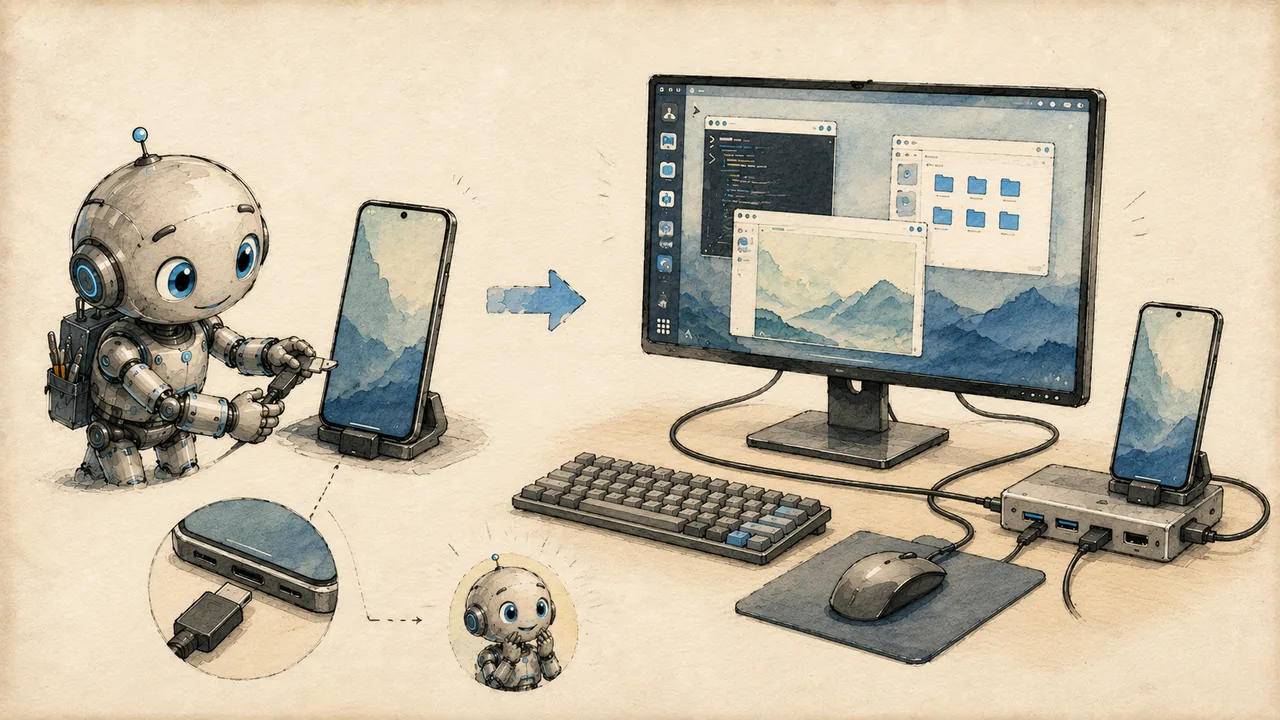
Samsung DeX transforms your Galaxy phone or tablet into a desktop computer by connecting to an external monitor, keyboard, and mouse. When combined with ADL, DeX becomes the bridge between a pocket-sized Android device and a genuine Linux workstation. This page covers what DeX brings to the ADL experience, how to set it up, and how to choose between wired and wireless connections.
If you are unfamiliar with Samsung DeX, read What is Samsung DeX? for background on how DeX works at a system level and why it pairs so well with Linux desktop environments.
What DeX Brings to ADL
Without DeX, your Linux desktop runs inside Termux:X11 on your phone or tablet screen. That works, but the experience is constrained by a small display and touch input. DeX removes those constraints:
- External display output -- your XFCE desktop renders on a full-size monitor at native resolution, not a 6-inch phone screen
- Keyboard and mouse input -- physical peripherals are passed through to the Linux environment, giving you real desktop interaction
- Windowed multitasking -- Termux:X11 runs as a resizable window alongside Android apps in DeX mode, or you can maximize it to fill the entire external display
- Persistent phone usability -- while your Linux desktop runs on the monitor, your phone screen remains functional as a touchpad, secondary display, or regular phone
The result is a setup that is functionally indistinguishable from a budget laptop, powered entirely by the processor in your phone.
Requirements
- Samsung Galaxy phone or tablet with DeX support (Galaxy S8/Note 8 or newer, Galaxy Tab S4 or newer)
- USB-C hub with HDMI output and power passthrough (for wired DeX)
- External monitor with HDMI input
- USB or Bluetooth keyboard
- USB or Bluetooth mouse
- ADL already installed and working (Termux, Ubuntu, XFCE)
Not sure if your Samsung device supports DeX? Open Settings > Connected devices > Samsung DeX. If that menu exists, your device supports it. Most Galaxy S, Note, Z Fold, and Tab S devices released after 2017 include DeX.
Setting Up DeX with Your Linux Desktop
Step 1: Connect Your Hardware
Plug your USB-C hub into your Samsung device, connect the HDMI cable to your monitor, and attach your keyboard and mouse to the hub's USB ports. DeX activates automatically when it detects an external display.
Use a USB-C hub that supports power delivery (PD) so your phone charges while running DeX. A desktop session drains the battery quickly -- you do not want your workstation shutting down mid-task because the battery died.
Step 2: Configure DeX Display Settings
Once DeX activates, configure the output on your Samsung device:
- Open Settings > Connected devices > Samsung DeX on the external display
- Set the screen resolution to match your monitor's native resolution (typically 1920x1080 or 2560x1440)
- Enable "DeX as default" if you want DeX to activate automatically every time you connect a display
Step 3: Launch ADL on the External Display
Open Termux on the external display within DeX. Start your desktop session:
~/start-desktop.shThen switch to the Termux:X11 window. Drag it to the external display if it opens on your phone screen, then maximize it.
Do not close the Termux window after launching the desktop. Termux must remain running in the background for the Linux session to stay alive. Minimize it instead of closing it.
Step 4: Adjust the Linux Display Resolution
If the XFCE desktop does not match your monitor's resolution, set it manually with xrandr:
xrandr --output HDMI-1 --mode 1920x1080 --rate 60To list all available resolutions for your connected display:
xrandr --queryIf your desired resolution is not listed, you may need to add it as a custom mode. See DeX Optimization for instructions on creating custom xrandr modes.
Wired vs. Wireless DeX
Samsung DeX supports both wired (USB-C to HDMI) and wireless (Miracast/Wi-Fi Direct) connections. The differences are significant enough to affect which one you should choose for ADL work.
| Feature | Wired DeX | Wireless DeX |
|---|---|---|
| Latency | Negligible (~1ms) | Noticeable (30-100ms) |
| Max Resolution | Up to 4K (device-dependent) | Typically 1080p |
| Refresh Rate | 60Hz | 30-60Hz (variable) |
| Stability | Rock solid | Occasional drops |
| USB Peripherals | Through hub | Bluetooth only |
| Charging | Simultaneous (with PD hub) | Separate charger needed |
| Range | Cable length | ~10 meters |
| Setup Complexity | Plug and play | Wi-Fi pairing required |
Wireless DeX introduces 30-100ms of input latency that is immediately noticeable when typing or moving a cursor. For terminal work, coding, or any task where you are constantly interacting with the display, wired DeX is strongly recommended. Wireless DeX is tolerable for reading documentation, watching videos, or giving presentations.
Display Configuration
Setting Resolution
DeX determines the resolution available to Termux:X11, which in turn determines what your XFCE desktop can display. To get the sharpest image, match the xrandr resolution to your monitor's native resolution.
Check your current display configuration:
xrandr --currentSet a specific resolution:
xrandr --output HDMI-1 --mode 1920x1080For higher-resolution monitors:
xrandr --output HDMI-1 --mode 2560x1440Setting a resolution higher than your monitor supports will result in a blank screen or garbled output. Always verify available modes with xrandr --query first. If you lose the display, disconnect and reconnect the HDMI cable to reset.
Scaling for High-DPI Monitors
If you connect to a 4K monitor, the native resolution will make text and UI elements extremely small. You have two options: run at a lower resolution, or adjust XFCE's scaling.
To adjust XFCE's DPI for readable text on high-resolution displays:
xfconf-query -c xsettings -p /Xft/DPI -s 144Common DPI values:
| Monitor Resolution | Recommended DPI | Result |
|---|---|---|
| 1920x1080 (Full HD) | 96 (default) | Standard scaling |
| 2560x1440 (QHD) | 120 | Slightly larger elements |
| 3840x2160 (4K) | 144-192 | Readable text at native res |
For most users, running at 1920x1080 on any monitor size gives the best balance of readability and screen real estate. High-DPI scaling in XFCE works but can produce inconsistent results across different applications. Only use native 4K if you specifically need the extra resolution for tasks like image editing.
Performance Considerations
DeX itself adds minimal overhead -- it is primarily a display routing mechanism. However, driving an external display does consume additional GPU and memory resources compared to running on the phone screen alone.
Expect roughly 10-15% higher battery consumption when running ADL through DeX compared to running on the device screen. With a USB-C hub that supports power delivery, this is irrelevant since the device charges simultaneously.
Wired Performance
Wired DeX delivers frames directly through the USB-C DisplayPort alternate mode. There is no encoding, compression, or network stack involved. What you see on the monitor is rendered at the same speed as the phone's own screen. This makes wired DeX suitable for any workload you would perform on a regular desktop.
Wireless Performance
Wireless DeX encodes the display output as a video stream and transmits it over Wi-Fi Direct. This introduces:
- Input latency of 30-100ms depending on Wi-Fi conditions
- Visual compression artifacts that are subtle but visible on detailed content like small text
- Occasional frame drops if other devices are competing for the same Wi-Fi channel
- Higher battery drain from the constant Wi-Fi transmission on top of the rendering workload
If you must use wireless DeX for a work session, reduce the resolution to 1920x1080 even if your display supports higher. The lower pixel count reduces encoding overhead and improves responsiveness.
Common DeX Issues with ADL
A few issues are specific to running a Linux desktop through DeX rather than a standard Android app:
Termux:X11 is missing from the Android app list. If the Termux:X11 Android app never installed — the APK installer closed silently — Samsung Auto Blocker is the usual cause. See Termux:X11 APK will not install on Samsung devices.
Termux:X11 opens on the phone screen instead of the monitor. This happens when DeX does not recognize Termux:X11 as a DeX-compatible app. Drag the window to the external display manually, or long-press the Termux:X11 icon in the DeX taskbar and select "Open on connected display."
Mouse cursor appears duplicated. You may see both the XFCE cursor and the Android/DeX cursor overlapping. In Termux:X11 preferences, enable "Capture external pointer" to hide the Android cursor while the Termux:X11 window is focused.
Keyboard shortcuts conflict with DeX. Some key combinations (like Alt+Tab) are intercepted by DeX before they reach XFCE. See DeX Optimization for how to remap conflicting shortcuts.
Display goes blank after disconnecting and reconnecting. If you unplug and replug the HDMI cable, xrandr may not re-detect the display. Run xrandr --auto to force re-detection, or restart the desktop session.
Next Steps
With DeX connected and your Linux desktop running on an external monitor, you have a functional workstation. To get the most out of it:
- Optimize your DeX setup -- resolution tuning, keyboard shortcuts, compositor settings, and performance tweaks
- Choose the right accessories -- USB-C hubs, monitors, keyboards, and mice that work well with DeX and ADL